Concept Testing with a Stimulus Deck but No Colour Tagging
Last updated: October 24, 2025
I have a stimulus deck and already collected my data online, can I still use the colour tagging method?
For the most accurate concept detection in CoLoop when sharing a stimulus deck on the screen, please use the colour tagging method. This does require a little bit of preparation prior to data collection.
If you've already collected you data and didn't apply colour tags, you can still upload use CoLoop to analyse the study but will need to follow the method outlined in this document.
Please note this may be less accurate than the colour tagging method, especially if you have slides with lots of pictures or lots of text.
Uploading Your Stimulus Deck and Labeling Slides
In addition to tagging concepts, you can also upload your stimulus deck into CoLoop. This enables the AI to easily distinguish between different concepts, even if they have similar names.
1. Enable Concept Testing and Enter Your Concept Names
Enable concept testing and then enter your concept names.
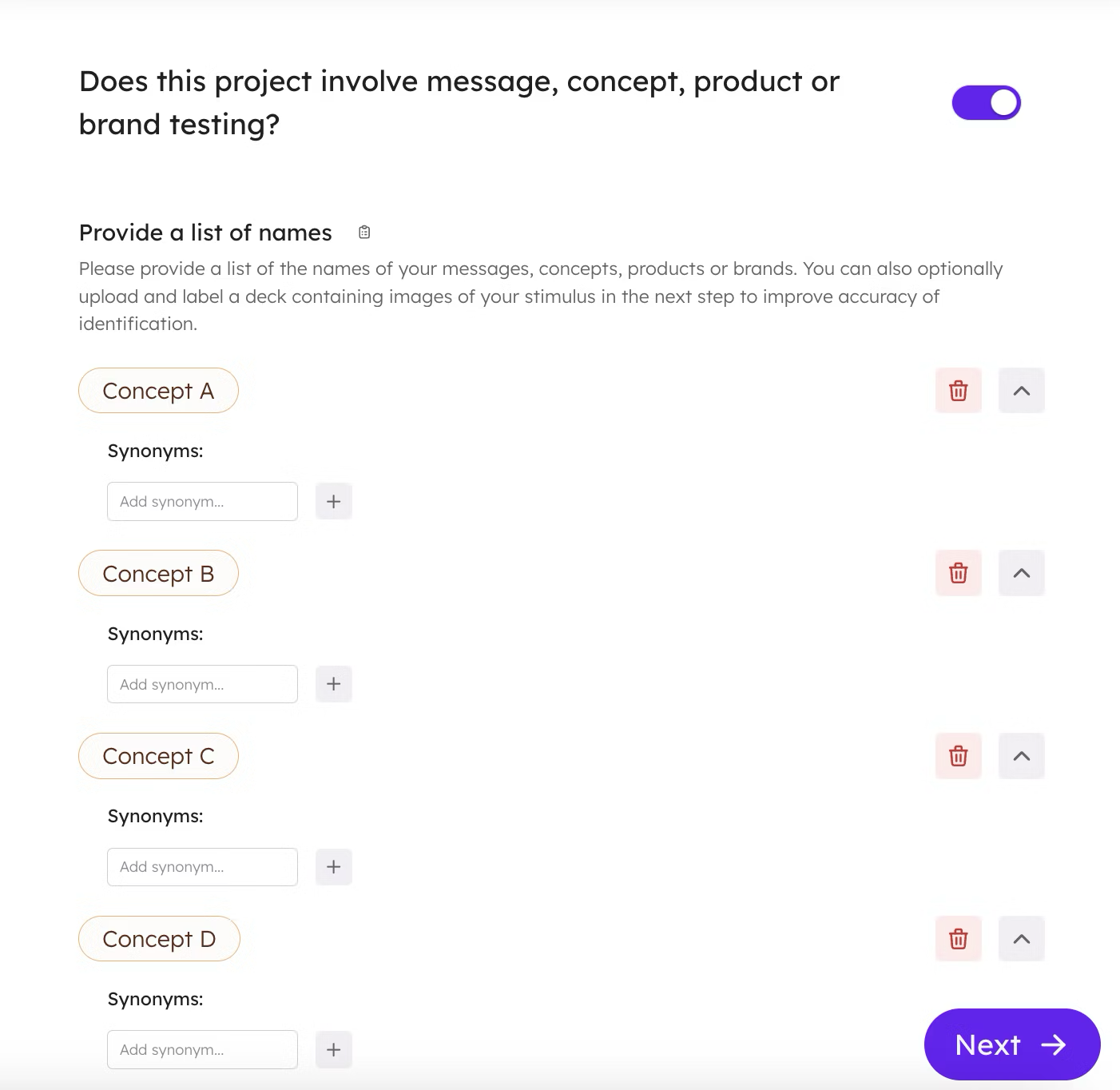
2. Allow the AI to Process the Slides
Once your file has the Ready status, click the ‘Open’ button.
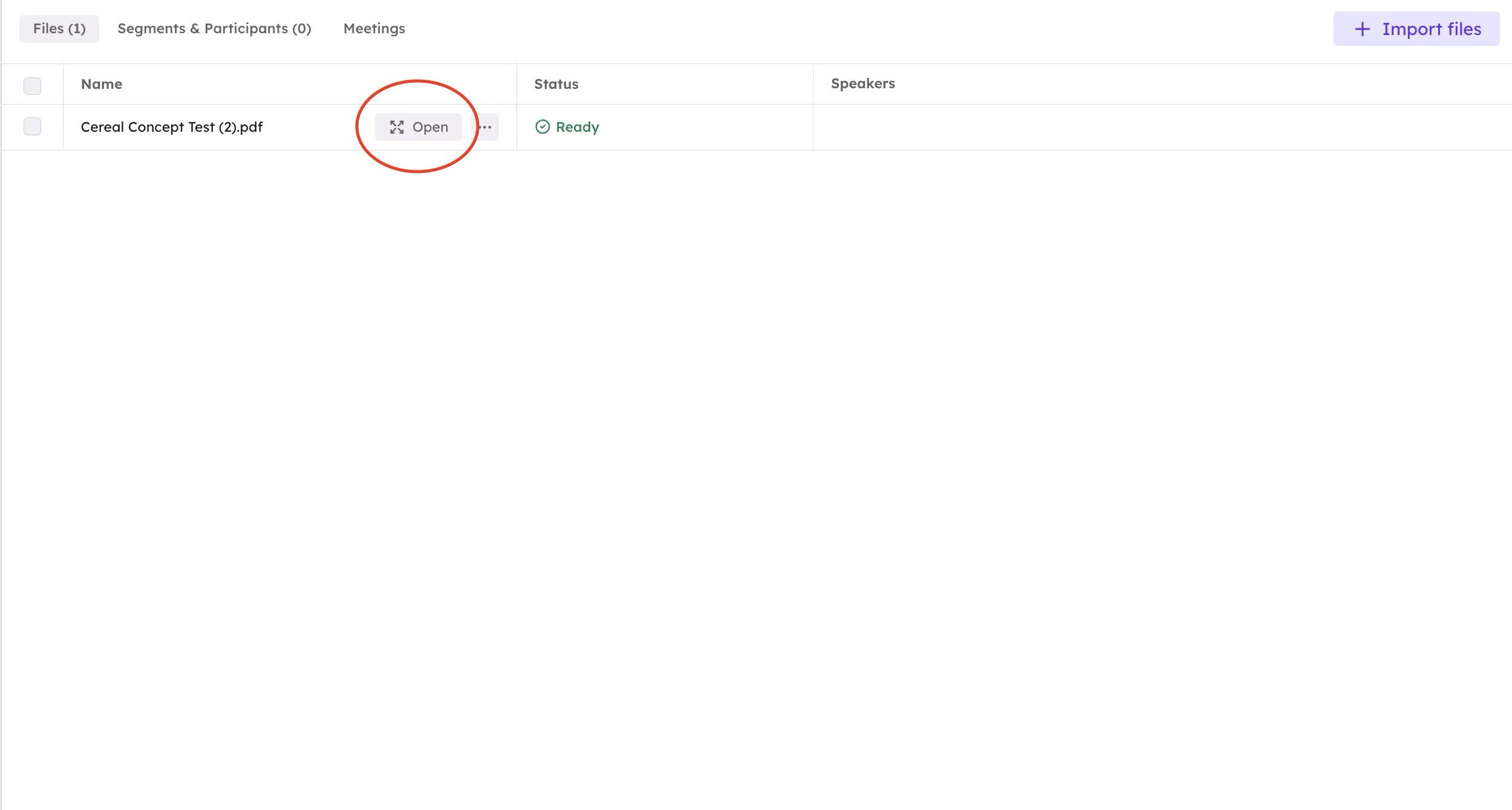
3. Label each slide
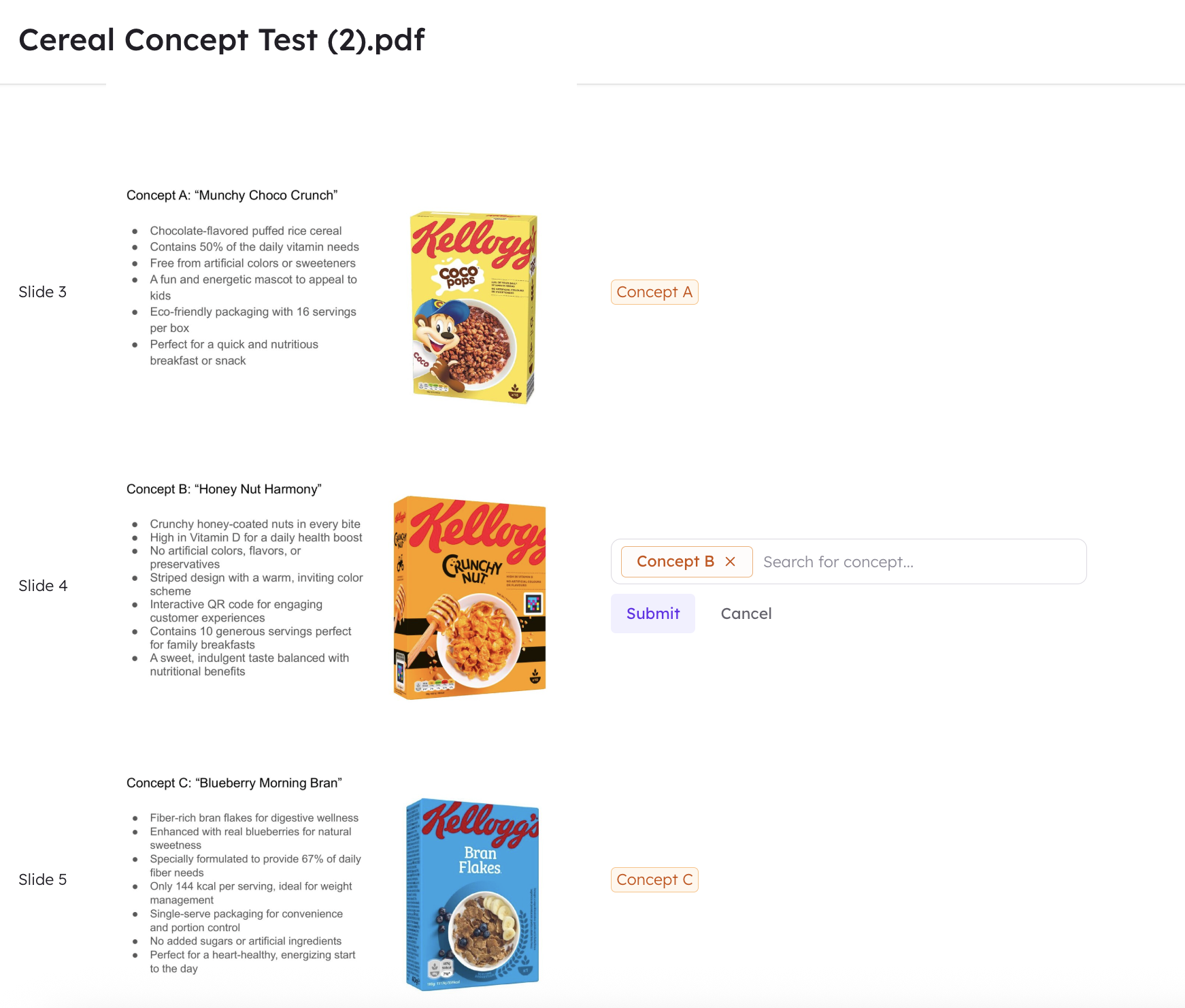
Label each concept corresponding to the respective slide e.g. Concept A on slide 1
The AI will detect when slides from the deck are shown on the video
If a slide shows multiple concepts, you can select multiple concepts
4. Import your Audio / Video Files
Once your deck is set up, you can import audio or video files to be transcribed and linked with the concepts.
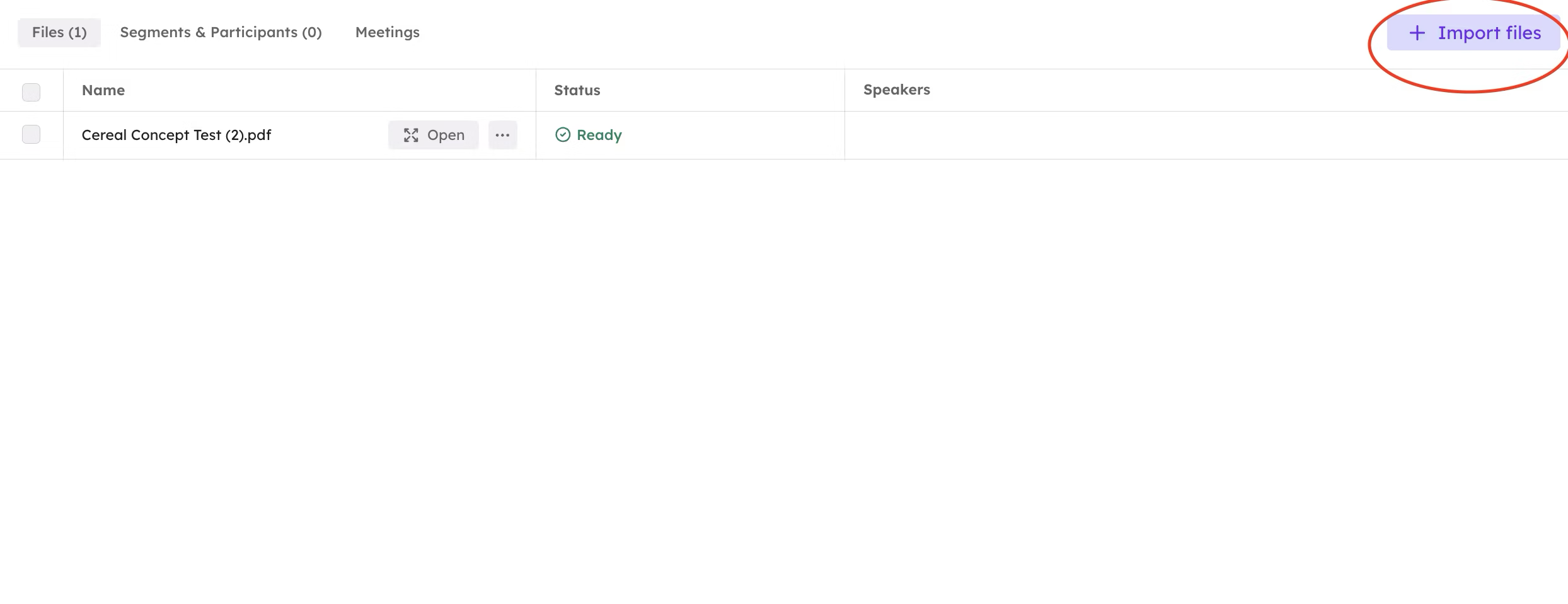
Click on the Import Files button in the top right corner of the screen to import your file.
Click on either the Audio or Video button depending on the format of your file.
Once you’ve uploaded your file, you’ll be prompted to hit ‘Complete’
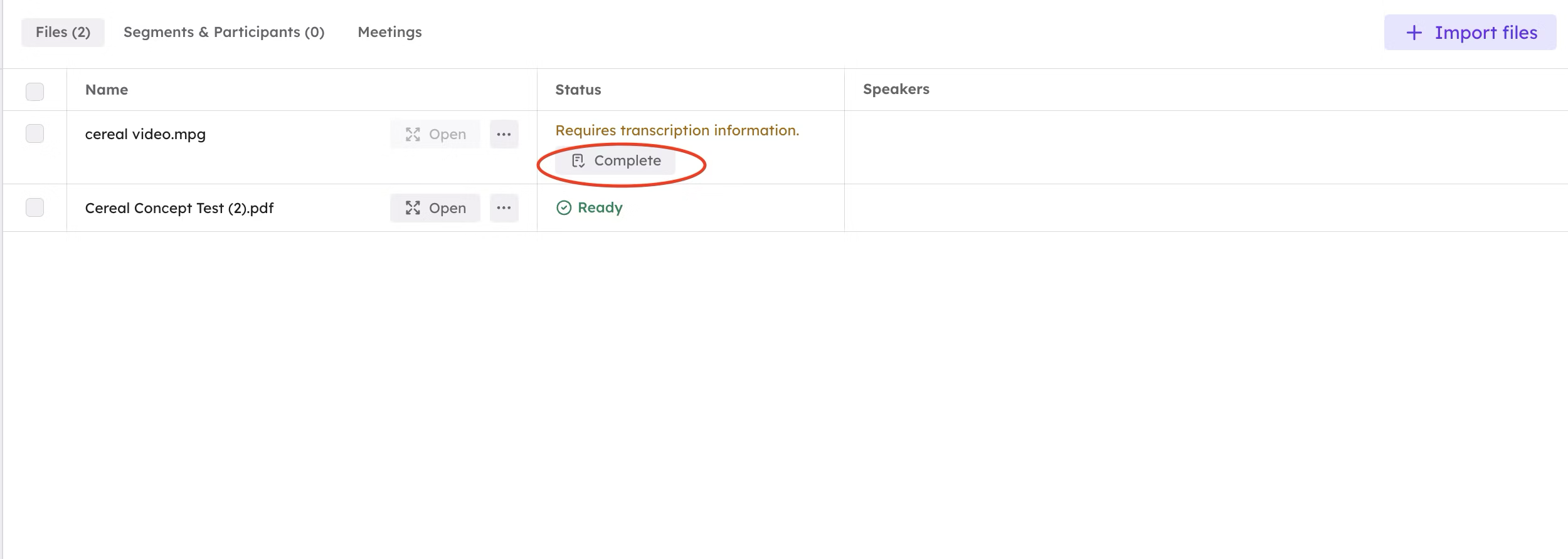
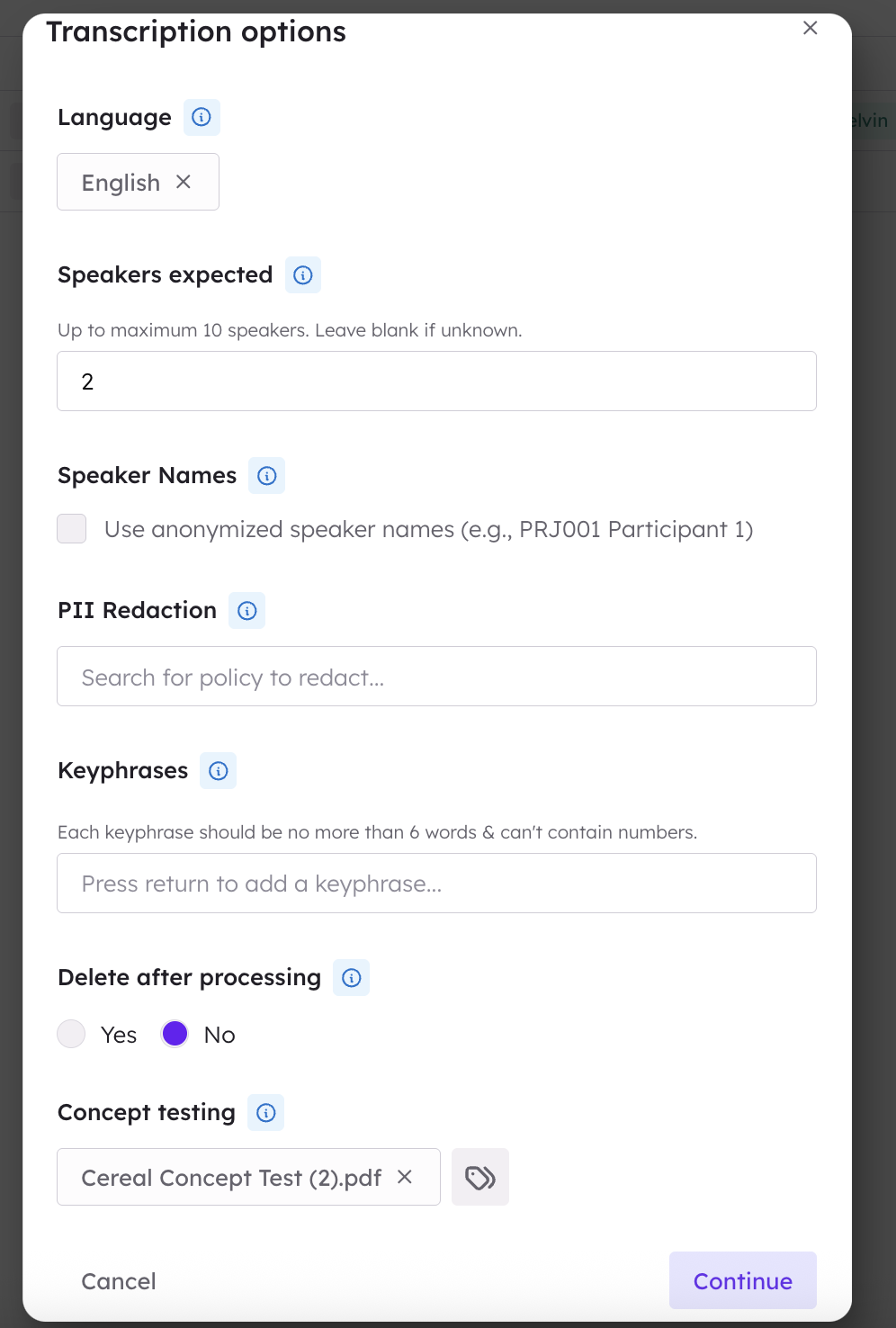
Then, enter some additional transcription information:
Speakers Expected: Number of speakers in the Audio/Video file
PII Redaction: Any sensitive information you would like to remove
Keyphrases: Any keywords or phrases you would like the AI to be aware of
Select the Correct Concept Deck
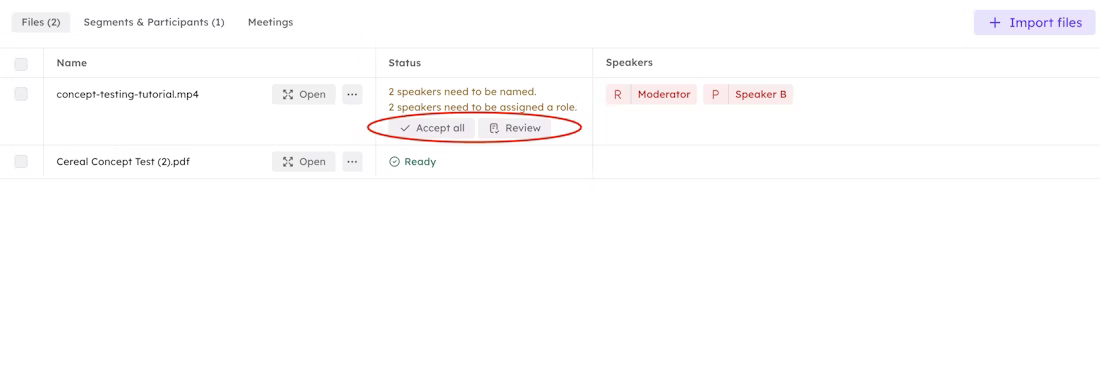
After the file has transcribed you’ll need to assign names and roles to your speakers by clicking on ‘Accept all’.
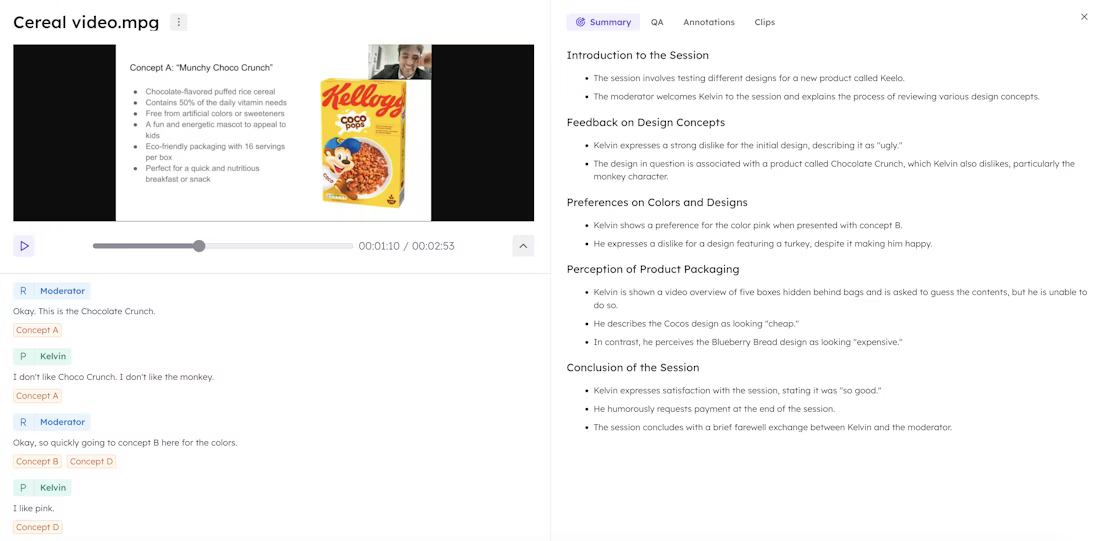
After you’ve labelled your speakers, the concepts will be automatically detected and assigned to different parts of the transcript.
Re-detecting concepts
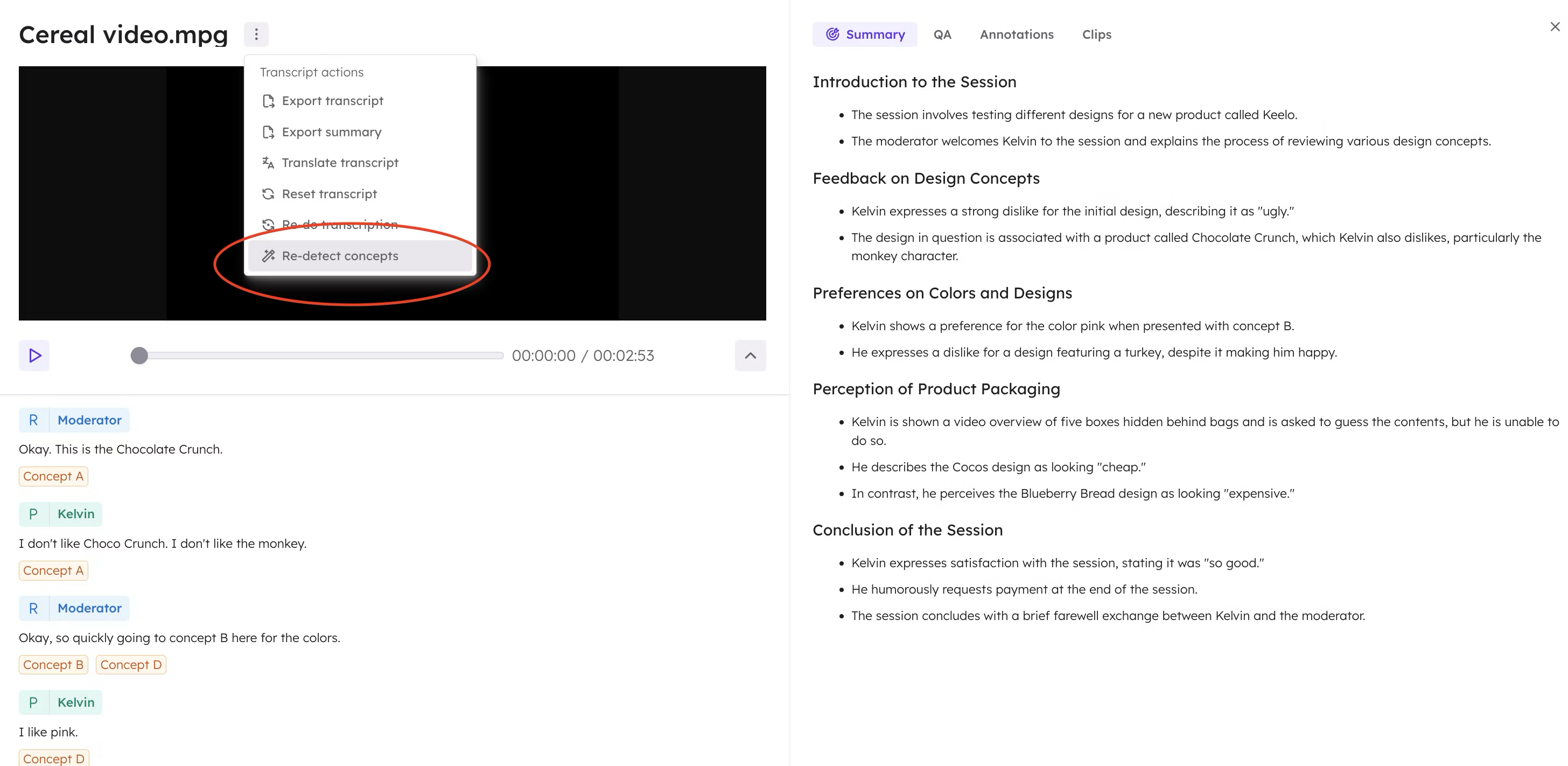
CoLoop also allows for the re-detection concepts without resetting the transcript. This is super useful in cases where you’ve added an extra deck or modified concept associations.
Upload Additional Decks (if needed): If you need to add more stimulus material, upload the additional deck.
Re-detect Concepts: Click the Re-detect Concepts button within your file interface to refresh the concept associations while retaining the previous transcript work.
Multiple Decks with the Non-Colour Tagging Concept Testing Method
In the event that you have multiple decks, because it's a multi-market study for example, you'll need to:
Upload every variation of the deck and make sure they're labelled correctly
Make sure you assign the correct deck when transcribing the videos