How to set up concept testing with a stimulus deck when the project has already been created?
Last updated: October 21, 2025
This guide will tell you how to set up concept testing projects that use a stimulus deck, if the project has already been created.
If your project has already been created, you can still easily incorporate concept testing at any time.
From the left-side menu, select ‘Add concepts’ and enter in all your concepts and press ‘Save’ once you’re finished.
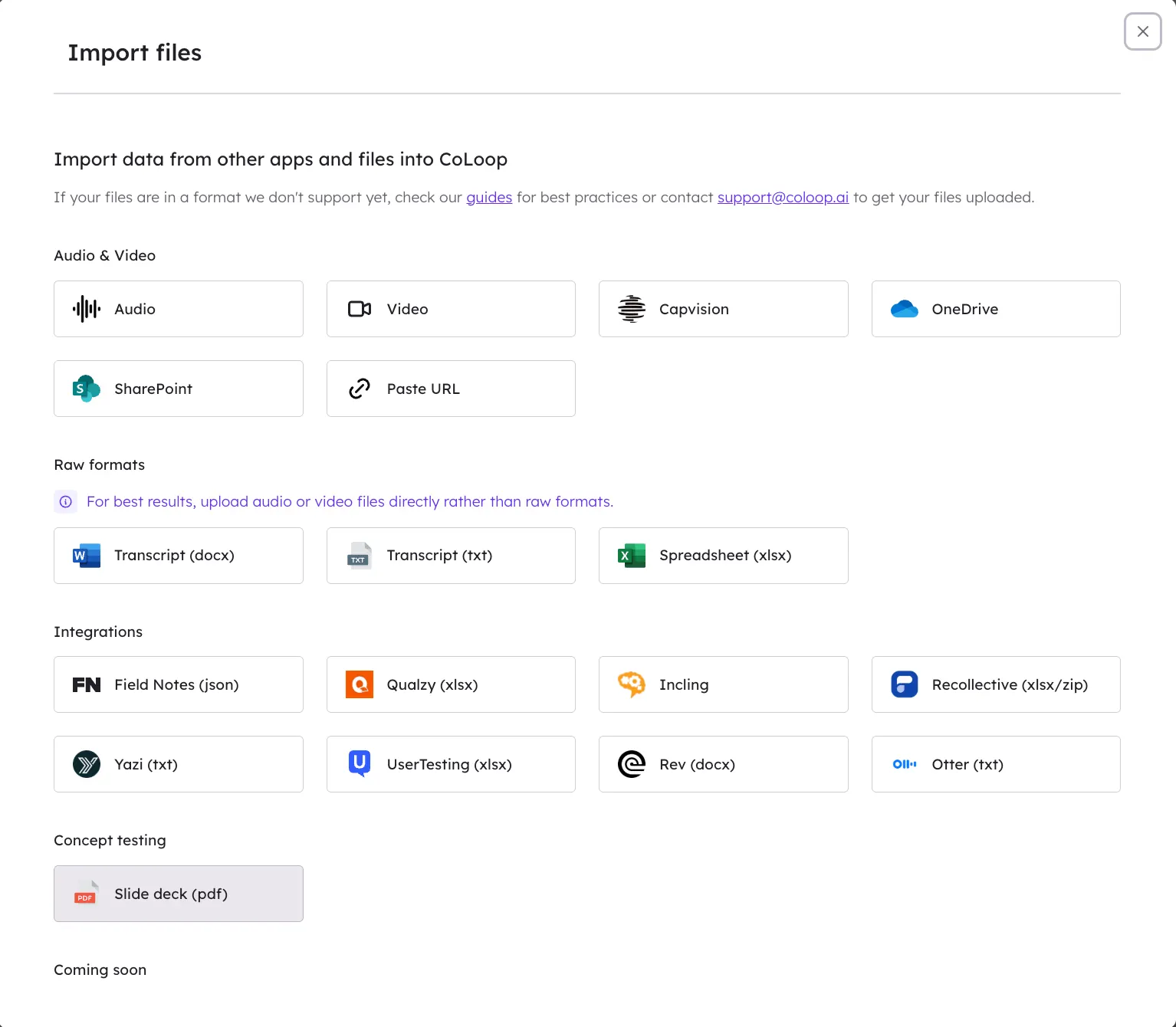
If you have a stim deck, click ‘Import files’ and select ‘Slide deck’ to upload your pdf.
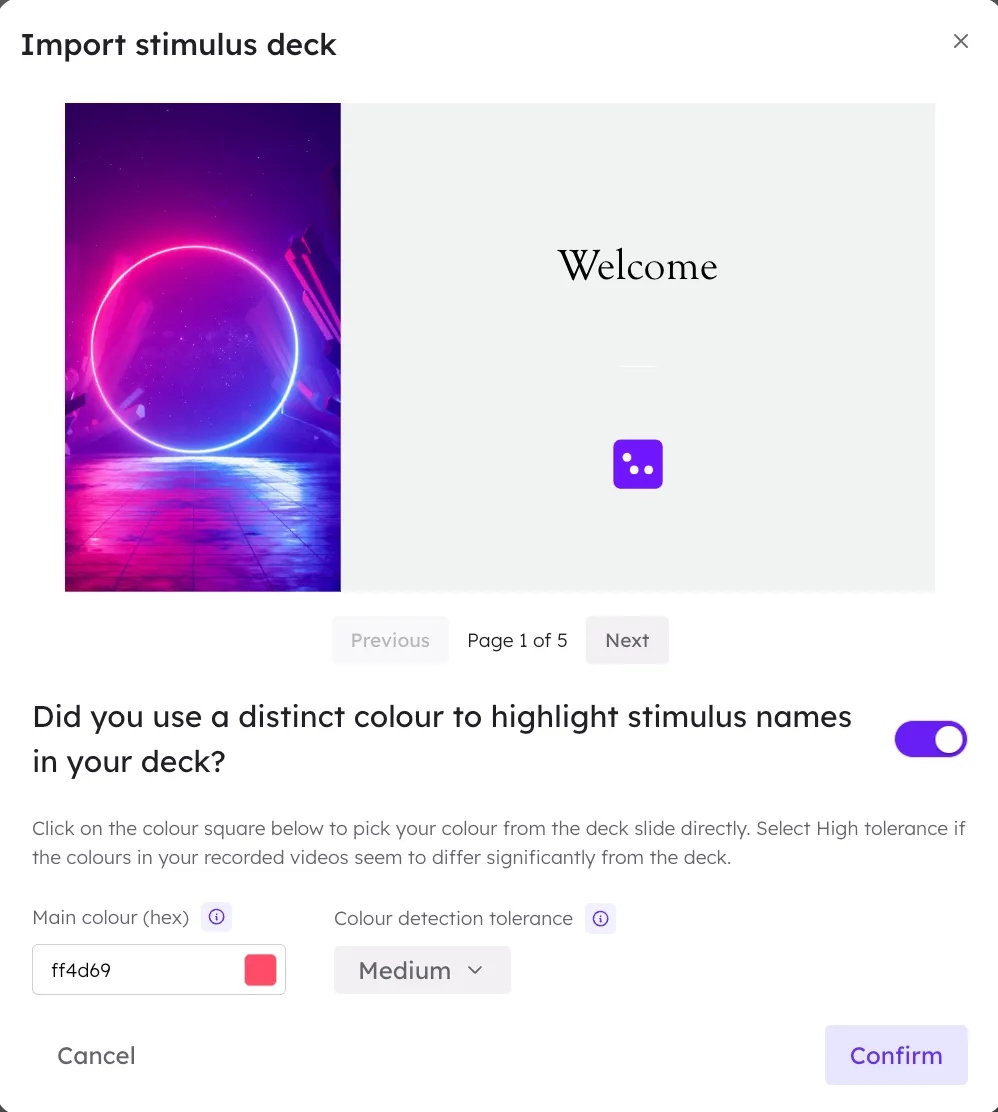
If you’ve used colour tagging in your slides and your recordings, please toggle this on here. You cannot retroactively add colour tags to slides if your recordings do not contain them. If you haven’t used colour tagging, just press ‘Confirm.’
Once your slides have been uploaded, please complete the concepts review and make sure all your concept names align with the slides. You can hover over the right hand side of a slide to edit the concept name associated. Then press ‘Confirm concepts.’
Please note concepts do not apply to files retroactively. This also applies once you’ve edited or updated concepts. To apply concepts to files you’ve already uploaded, open a transcript, press the three dots at the top, and select ‘Re-detect concepts.’
How do I add or edit my list of concepts?
You can add or edit concepts at any time from the left hand menu. After changing concepts, you’ll need to go into the relevant files and select ‘Re-detect concepts’ in each file.
You can also edit which concepts are correlated with each slide by opening up the deck, and clicking ‘Edit concepts’ on any slide. After changing concepts, you’ll need to go into the relevant files and select ‘Re-detect concepts’ in each file.